network
vi /etc/sysconfig/network-scripts/ifcfg-eth0 //onboot yes
change virtualbox network-adapter to bridge
service network start
user
adduser someuser
passwd someuser
visudo // someuser ALL=(ALL) ALL
iptables
sudo iptables -P INPUT ACCEPT //input default
sudo iptables -P OUTPUT ACCEPT //output default
sudo iptables -P FORWARD ACCEPT //forward default
sudo iptables -F //remove chain rule
sudo iptables -X // remove user-defined chain rule ( by iptables -N
sudo iptables -Z // Zero counters in chain or all chains
sudo iptables -I INPUT -m state --state ESTABLISHED,RELATED -j ACCEPT
//accept had shack hand's reqeust
sudo iptables -A INPUT -i lo -j ACCEPT
sudo iptables -A INPUT -p tcp -s 192.168.0.0/24 --dport 22 -j ACCEPT
sudo iptables -A INPUT -p tcp -s 192.168.0.0/24 --dport 80 -j ACCEPT
sudo iptables -D INPUT 3 // remove chain rule
sudo iptables -R INPUT 3 -p tcp -s 192.168.0.2 --dport 22 -j ACCEPT // replace chain rule
sudo iptables -P INPUT DROP //policy default drop
sudo /etc/init.d/iptables save
sudo iptables -L -n
list mounted devices
df
VirtualBox Guest Additions on Fedora 20/19, CentOS/RHEL 6.5/5.10
Reference : http://www.if-not-true-then-false.com/2010/install-virtualbox-guest-additions-on-fedora-centos-red-hat-rhel/
share virtual box folder
be sure you vm_folder exists & empty & auto_mount is disable
//manual
mount -t vboxsf share_name vm_folder
// auto
sudo vi /etc/fstab
add to last line:
share_name /vm_folder vboxsf defaults 0 0
avoid shared file edit in host not change in VM (js,css,img)
edit apache config:
EnableSendfile Off
SELinux.....
virtualbox share folder for httpd with selinux ... i can't find solution , so i disable it
sudo vi /etc/selinux/config
change SELINUX=enforcing to SELINUX=permissive
reboot
mariadb
mysql_secure_installation // init root passwd
The following my.cnf example files are included with MariaDB. Examine them to see more complete examples of some of the many ways to configure MariaDB.
my-small.cnf
my-medium.cnf
my-large.cnf
my-huge.cnf
The above example files can usually be found in one of the following directories:
source-file-path/support-files
mysql-install-path/share/mysql (e.g. /usr/local/mysql/share/mysql)
so
sudo cp /usr/share/mysql/my-xxx.cnf /etc/my.cnf
//set default charactor to utf8 and utf8_unicode_ci
**edit my.cnf :
[client]
default-character-set=utf8
[mysqld]
character-set-server=utf8
collation-server=utf8_unicode_ci
#init_connect='SET collation_connection=utf8_unicode_ci'
#skip-character-set-client-handshake
[mysql]
default-character-set=utf8
end edit**
//even we set collation_connection=utf8_unicode_ci , mysql will reset it back to utf8_general_ci
// so need above two line :
// init_connect='SET collation_connection=utf8_unicode_ci'
// skip-character-set-client-handshake
// where [skip-character-set-client-handshake] can stop mysql handshake and reset it
sudo iptables -L -n
list mounted devices
df
VirtualBox Guest Additions on Fedora 20/19, CentOS/RHEL 6.5/5.10
Reference : http://www.if-not-true-then-false.com/2010/install-virtualbox-guest-additions-on-fedora-centos-red-hat-rhel/
Install VirtualBox Guest Additions on Fedora, CentOS and Red Hat (RHEL)
1. Change root user
2. Mount VirtualBox Guest Additions
Click Devices > Install Guest Additions… on VirtualBox
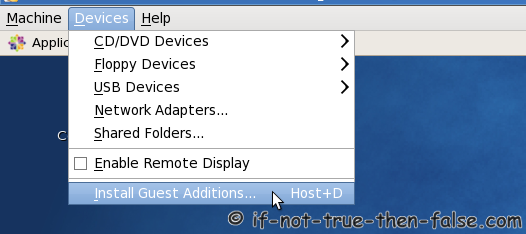
Mount VirtualBox Guest Additions device
3. Make sure that you are running latest kernel
Update virtual machine kernel and reboot
4. Install following packages
On CentOS/Red Hat (RHEL) 6/5, EPEL repo is needed
Install following packages
5. Add KERN_DIR environment variable
6. Install Guest Additions
Output looks like following:
[root@fedora VBoxGuestAdditions]# ./VBoxLinuxAdditions.run
Verifying archive integrity... All good.
Uncompressing VirtualBox 4.1.6 Guest Additions for Linux.........
VirtualBox Guest Additions installer
Removing installed version 4.1.6 of VirtualBox Guest Additions...
Removing existing VirtualBox DKMS kernel modules           [  OK  ]
Removing existing VirtualBox non-DKMS kernel modules       [  OK  ]
Building the VirtualBox Guest Additions kernel modules
Building the main Guest Additions module                   [  OK  ]
Building the shared folder support module                  [  OK  ]
Building the OpenGL support module                         [  OK  ]
Doing non-kernel setup of the Guest Additions              [  OK  ]
You should restart your guest to make sure the new modules are actually used

Installing the Window System drivers
Installing X.Org Server 1.11 modules                       [  OK  ]
Setting up the Window System to use the Guest Additions    [  OK  ]
You may need to restart the hal service and the Window System (or just restart
the guest system) to enable the Guest Additions.

Installing graphics libraries and desktop services componen[  OK  ]
7. Reboot guest system
Then VirtualBox Guest Additions install is ready.
share virtual box folder
be sure you vm_folder exists & empty & auto_mount is disable
//manual
mount -t vboxsf share_name vm_folder
// auto
sudo vi /etc/fstab
add to last line:
share_name /vm_folder vboxsf defaults 0 0
avoid shared file edit in host not change in VM (js,css,img)
edit apache config:
EnableSendfile Off
SELinux.....
virtualbox share folder for httpd with selinux ... i can't find solution , so i disable it
sudo vi /etc/selinux/config
change SELINUX=enforcing to SELINUX=permissive
reboot
mariadb
mysql_secure_installation // init root passwd
The following my.cnf example files are included with MariaDB. Examine them to see more complete examples of some of the many ways to configure MariaDB.
my-small.cnf
my-medium.cnf
my-large.cnf
my-huge.cnf
The above example files can usually be found in one of the following directories:
source-file-path/support-files
mysql-install-path/share/mysql (e.g. /usr/local/mysql/share/mysql)
so
sudo cp /usr/share/mysql/my-xxx.cnf /etc/my.cnf
//set default charactor to utf8 and utf8_unicode_ci
**edit my.cnf :
[client]
default-character-set=utf8
[mysqld]
character-set-server=utf8
collation-server=utf8_unicode_ci
#init_connect='SET collation_connection=utf8_unicode_ci'
#skip-character-set-client-handshake
[mysql]
default-character-set=utf8
end edit**
//even we set collation_connection=utf8_unicode_ci , mysql will reset it back to utf8_general_ci
// so need above two line :
// init_connect='SET collation_connection=utf8_unicode_ci'
// skip-character-set-client-handshake
// where [skip-character-set-client-handshake] can stop mysql handshake and reset it
MariaDB [(none)]> show variables like 'collation%';
+----------------------+-----------------+
| Variable_name | Value |
+----------------------+-----------------+
| collation_connection | utf8_unicode_ci |
| collation_database | utf8_unicode_ci |
| collation_server | utf8_unicode_ci |
+----------------------+-----------------+
+----------------------+-----------------+
| Variable_name | Value |
+----------------------+-----------------+
| collation_connection | utf8_unicode_ci |
| collation_database | utf8_unicode_ci |
| collation_server | utf8_unicode_ci |
+----------------------+-----------------+
mysql querys
CREATE USER 'monty'@'localhost' IDENTIFIED BY 'some_pass';
GRANT ALL ON *.* TO 'username'@'localhost' IDENTIFIED BY 'password' WITH GRANT OPTION;
//replace user host
UPDATE mysql.user SET host = '10.0.0.%' WHERE host = 'internalfoo' AND user != 'root';
UPDATE mysql.db SET host = '10.0.0.%' WHERE host = 'internalfoo' AND user != 'root';
FLUSH PRIVILEGES;
// with grant option is mean this user can set grant options to others
DROP USER username@'123.123.123.%';
DROP USER username@localhost;
DROP USER username;
FLUSH PRIVILEGES;
select * from :table where :condition group by :column order by :column;
update :table set :column=:value;
insert into :table (:column1, :column2) value(:value1, :value2);
CREATE USER 'monty'@'localhost' IDENTIFIED BY 'some_pass';
GRANT ALL ON *.* TO 'username'@'localhost' IDENTIFIED BY 'password' WITH GRANT OPTION;
//replace user host
UPDATE mysql.user SET host = '10.0.0.%' WHERE host = 'internalfoo' AND user != 'root';
UPDATE mysql.db SET host = '10.0.0.%' WHERE host = 'internalfoo' AND user != 'root';
FLUSH PRIVILEGES;
// with grant option is mean this user can set grant options to others
DROP USER username@'123.123.123.%';
DROP USER username@localhost;
DROP USER username;
FLUSH PRIVILEGES;
select * from :table where :condition group by :column order by :column;
update :table set :column=:value;
insert into :table (:column1, :column2) value(:value1, :value2);
Centos6 with php-mcrypt
1) Install EPEL repository (From: http://www.rackspace.com/knowledge_center/article/installing-rhel-epel-repo-on-centos-5x-or-6x):wget http://dl.fedoraproject.org/pub/epel/6/x86_64/epel-release-6-8.noarch.rpm wget http://rpms.famillecollet.com/enterprise/remi-release-6.rpm sudo rpm -Uvh remi-release-6*.rpm epel-release-6*.rpm2) Install it via:yum update yum install php-mcrypt*
Service on boot
chkconfig --list service_name
chkconfig service_name on
chkconfig service_name off

No comments:
Post a Comment